


Memories
Memories are information pieces TabMate saves in your workspace so they can be reused across tabs and sessions. When you ask something, TabMate does not blindly inject every saved memory. It retrieves the ones that are most relevant, then composes a small memory context for the ask.
In practice, memories are your long-lived workspace knowledge layer:
- You capture durable facts, quotes, summaries, and operating rules.
- TabMate retrieves the subset that matters for the current ask.
- Asks become faster and more consistent over time because context is not rebuilt from scratch.
How memory retrieval actually works
At ask-time, TabMate runs workspace-scoped memory retrieval and then composes lanes for prompt injection.
- Workspace-scoped: retrieval is limited to the current workspace.
- Retrievable only: archived and expired memories are excluded.
- Ranked candidates: candidates are ordered by pin flag, importance, recent access, and recency.
- Capped output: TabMate caps memories to most relevant only.
This cap is intentional. It keeps prompts focused and prevents memory sprawl from flooding every ask.
Memory types
Not all memories behave the same way. Type controls retention behavior and how the memory should be used.
-
Fact — specific details (date, number, decision, concrete claim). Default expiry: 180 days if unused.
-
Snippet — verbatim text to preserve as-is (quote, URL, phrase, code line). Default expiry: 60 days if unused.
-
Summary — condensed takeaways from longer material (page, document, conversation block). Default expiry: 60 days if unused.
-
Preference — output/style preferences for how TabMate should respond. Default expiry: none.
-
Instruction — persistent rules TabMate should follow. Default expiry: none.
💡 Facts, snippets, and summaries are retrieved by relevance and recency/importance ranking. Preferences and instructions are non-expiring rule-like memory kinds and are intended to stay durable.
Memory lifecycle and cleanup
Memories move through a lifecycle:
- Active: eligible for retrieval.
- Expired: no longer retrievable.
- Archived: retained for cleanup policy handling.
- Deleted: removed after archive retention windows.
Default retention constants in backend policy include:
- Archived-memory retention window: 30 days.
- Memory-candidate retention/requeue windows for candidate workflows.
The exact runtime values can be configured server-side; docs values reflect default behavior.
How to create memories
Memory candidates
After each response, TabMate quietly looks at the conversation and flags anything it thinks is worth saving. These appear in your Memory candidates list for you to review.
You can accept the ones that look right and discard the rest. TabMate will never save candidates on its own until you review and approve.
Candidate extraction is post-response and workspace-aware. In long sessions, this is useful for catching high-signal lines you did not manually save while reading.
From a page excerpt
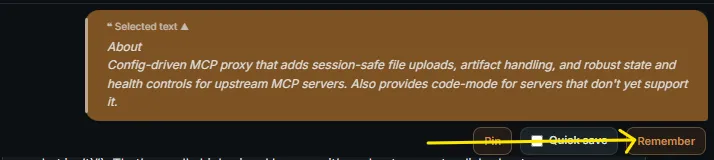
Select text on any page to bring it into TabMate as an excerpt. Once it appears in the panel, you can save it directly as a memory from the excerpt card.
💡 You can check the Quick save checkbox to skip the memory type select and save it as a snippet.
From a pin
Pins are temporary holds on excerpts you want to keep for a short while. If something pinned turns out to be worth keeping long-term, you can promote it to a memory directly from the pin card.
- Open your list of pins from the shortcut bar

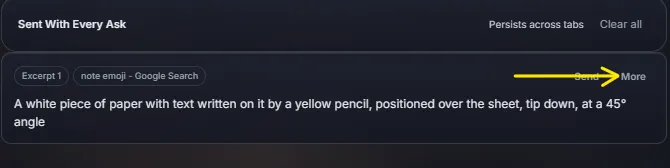
- Click on More in the pin you want to save
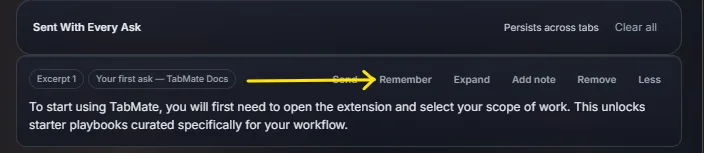
- Click on Remember to open the memory saving dialog
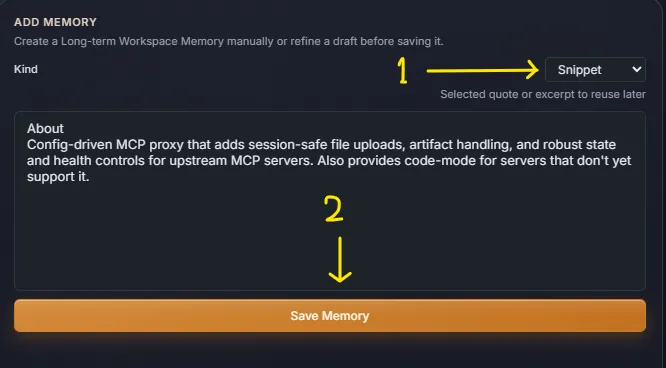
- Select the type of memory you want to save the pin as and click on Save Memory.
From a response
When TabMate gives a response, you can save any part of it as a memory using the save option on the response.
💡 You can enable the Quick save icon to skip the memory type select and save it as a snippet.
- Hover your mouse over the response and click on the Remember icon.

- Select your memory type and click on Save Memory.
Manually
You can create a memory from scratch without it coming from a page or a conversation. Open the Memories panel, click New memory, choose the type, and write what you want to save.
💡 When creating a memory manually, pick the type that matches what you are saving. Preference and instruction types are always active on every ask — use those only for things you want applied everywhere, not just for one topic.
- Click on the Memories icon in the shortcut bar or in the top navigation bar.
 /
/ 
- Click on Add Memory.
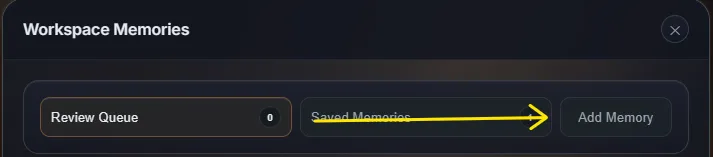
- Write what you want and select the type of memory you want to save the pin as and click on Save Memory.
How to view and delete saved memories
- Click on the Memories icon in the shortcut bar or in the top navigation bar.
/
- Click on Saved Memories. TabMate will show you all memories in the current workspace and which ones were saved from the current page.
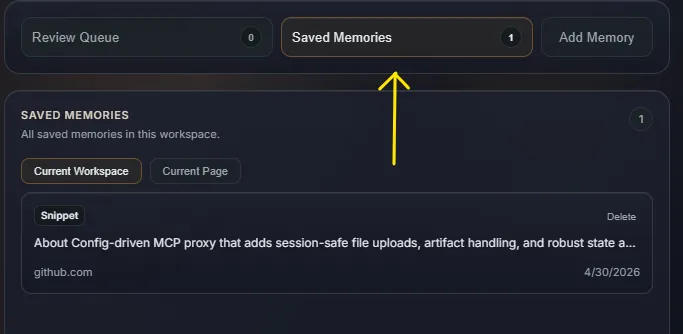
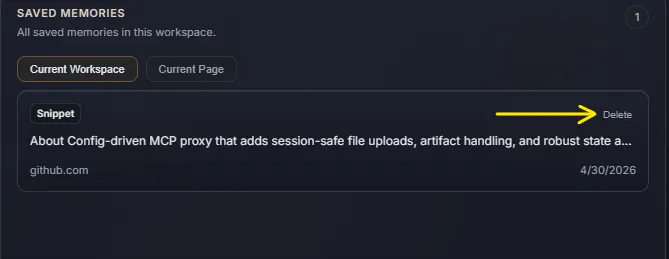
- To delete a memory, click on the Delete button and confirm the deletion.
Practical guidance: choosing the right memory kind
Use this quick decision rule:
- Will this still matter in a month? Use Fact or Instruction.
- Do I need exact wording? Use Snippet.
- Do I need compact recall of long material? Use Summary.
- Is this about response style/format? Use Preference.
Good memory hygiene improves retrieval quality more than raw memory volume. Fewer precise memories beat many vague ones.