


UI sections
TabMate looks simple on purpose. Every part of the screen has one job. If you know what each section is for, you move faster and lose less context.
This guide explains each section in plain terms for everyday use.
Quick way to think about the screen
- Top bar: where you control scope and switch views.
- Shortcut bar: where you see what you have accumulated in this workspace.
- Page info and highlight area: where page context enters TabMate.
- Answer actions: where you save, pin, copy, or retry.
- Ask palette: where each new ask starts.
The navigation bar

The navigation bar is your control center.
From left to right:
-
Workspace selector Pick the workspace you want to work in. Everything in TabMate is scoped to this choice: chats, memories, pins, prompts. If results feel “off,” check this first.
-
New chat Starts a fresh conversation in the same workspace. Use this when your previous thread is too long or you are switching to a new sub-task.
-
Notebook Opens the running notebook view so you can inspect what TabMate is currently tracking. Good for long sessions when you want to confirm direction.
-
Conversation history Opens past chats in the current workspace. Useful when you want to continue previous work instead of repeating asks.
-
Memories Opens memory management for the workspace. Use it to review, add, or remove saved memories.
-
Theme toggle Switches visual mode.
-
User options Account and related options.
The shortcut bar

Think of this as your workspace status strip. It tells you what is available right now without opening extra panels.
From left to right:
-
Model selector Choose which model you want for the current session.
-
Model effort selector Choose how much effort/depth the model should use.
-
Usage metrics Quick view of usage information.
-
Workspace count How many workspaces you have.
-
Saved memories count How much durable context is already stored in this workspace.
-
Pinned excerpts count How many temporary always-on snippets are active.
-
Saved prompts count How many reusable prompts are available in this workspace.
Page information

This section shows which page TabMate is reading right now. It also indicates whether content was refreshed when you revisited the page.
Why this matters:
- You can quickly verify that your ask is grounded to the expected tab.
- You avoid asking from stale page context by mistake.
The highlight area
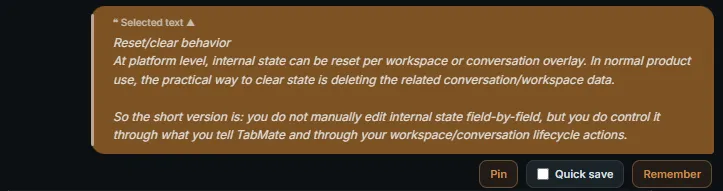
When you highlight text on a page, it appears here as an excerpt. This is the fastest way to focus TabMate on a specific passage.
Use it when:
- A long page has one paragraph you care about.
- You want a precise explanation of one claim.
- You want to pin or remember exact wording.
Post-response actions

After TabMate answers, you can act on that response immediately.
From left to right:
-
Copy response Copies the response text so you can paste it elsewhere.
-
Quick save toggle Speeds up memory saving by reducing extra steps.
-
Save as memory Stores the response as workspace memory for future asks.
-
Pin response Adds the response to your active pin set so it stays in context on upcoming asks.
-
Retry Re-runs the ask when you want an improved or corrected answer.
Ask palette

This is where each ask starts.
From left to right:
-
Ask input box Type your question or instruction.
-
Saved prompts button Insert a reusable prompt template into your ask.
-
Send Submits the ask.
Common usage pattern that works well
- Confirm workspace in the top bar.
- Confirm page info is correct.
- Highlight important text if needed.
- Ask from the ask palette.
- Pin temporary context for short-term tasks.
- Save durable insights as memories.
Common mistakes to avoid
- Asking in the wrong workspace.
- Keeping old pins active after the task changed.
- Saving too little as memory and then repeating the same work later.
- Skipping page highlights on long pages, then getting broad answers.
If you keep these sections in mind, TabMate feels much more predictable and much less “chat-like.” It becomes a real working surface for research, not just a place to ask random questions.