


Your first ask
Once TabMate is installed, getting to your first answer takes about a minute. This page walks you through the whole thing step by step - what to click, what to expect, and a few things worth knowing before you get going.
Step 1: Open TabMate
Click the Extensions button on the right side of your address bar - it looks like a puzzle piece. In the dropdown that appears, click on TabMate.
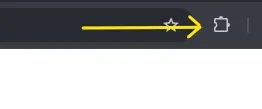
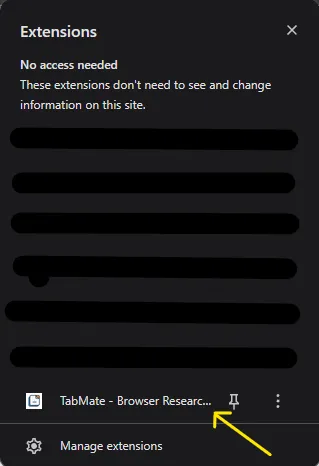
TabMate will open as a sidebar panel on the right side of your browser. On Firefox, this sidebar appears on the left. If you find yourself opening it often, you can pin it to your toolbar so it’s always one click away.
Step 2: Pick your profile
The first time you open TabMate, it will ask what kind of work you do. This isn’t a locked-in decision - it just sets up a starting collection of question starters that fit your workflow.
The options are things like Researcher, Founder, Student, and General. Pick the one that fits best and click Start chat.
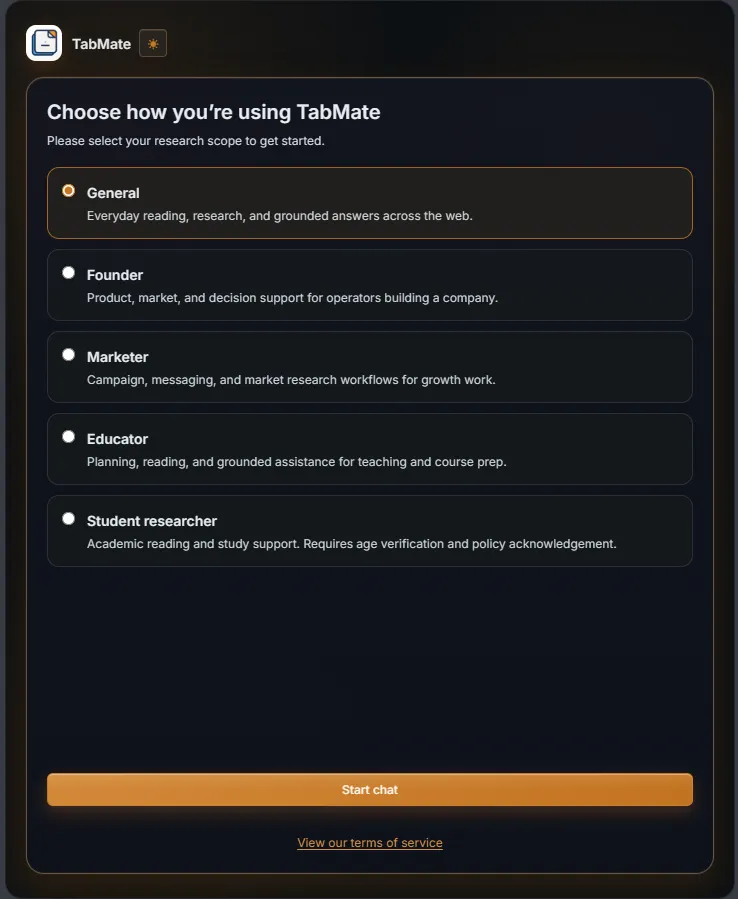
If you pick Student, you’ll need to confirm that you’re 18 or older before continuing.
After you pick a profile, TabMate creates a temporary workspace for your session. Think of a workspace as a container that holds your conversation, any context you add, and notes TabMate picks up along the way. You can name and save it properly later.
Step 3: Give TabMate access to the page
Navigate to the page you want to ask about. TabMate will show an Enable button the first time it sees a site it hasn’t accessed before.
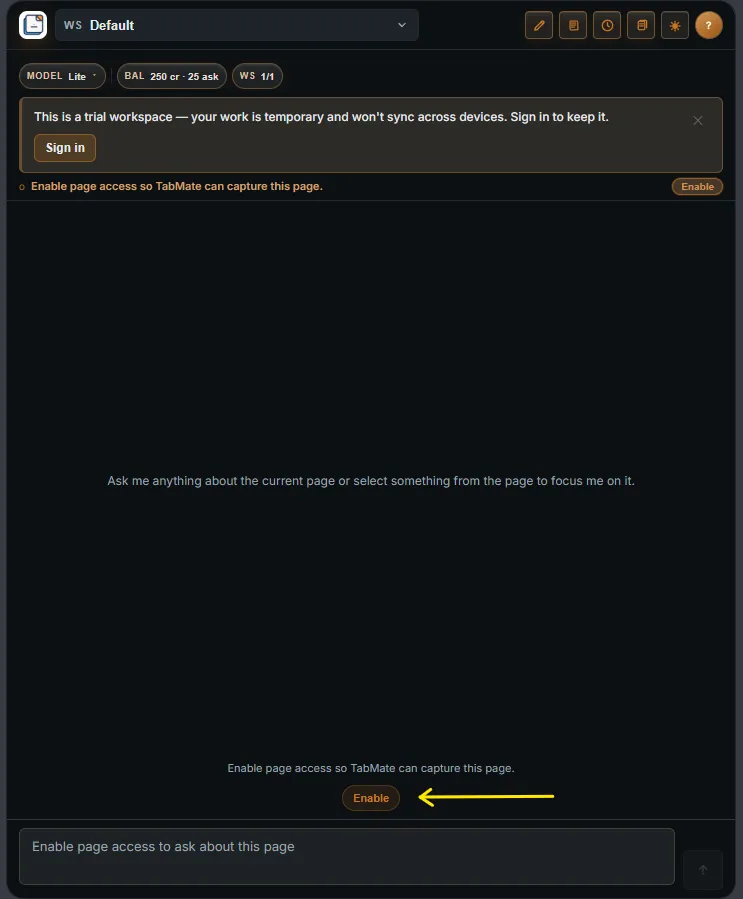
Click Enable. This grants TabMate permission to read pages on that domain. Once you’ve enabled a site, TabMate won’t ask again the next time you visit it - the permission sticks.
TabMate only reads pages you visit while the sidebar is open. It doesn’t run in the background or collect anything when you’re not using it.
Step 4: Ask your question
Now just type your question in the chat and hit send.
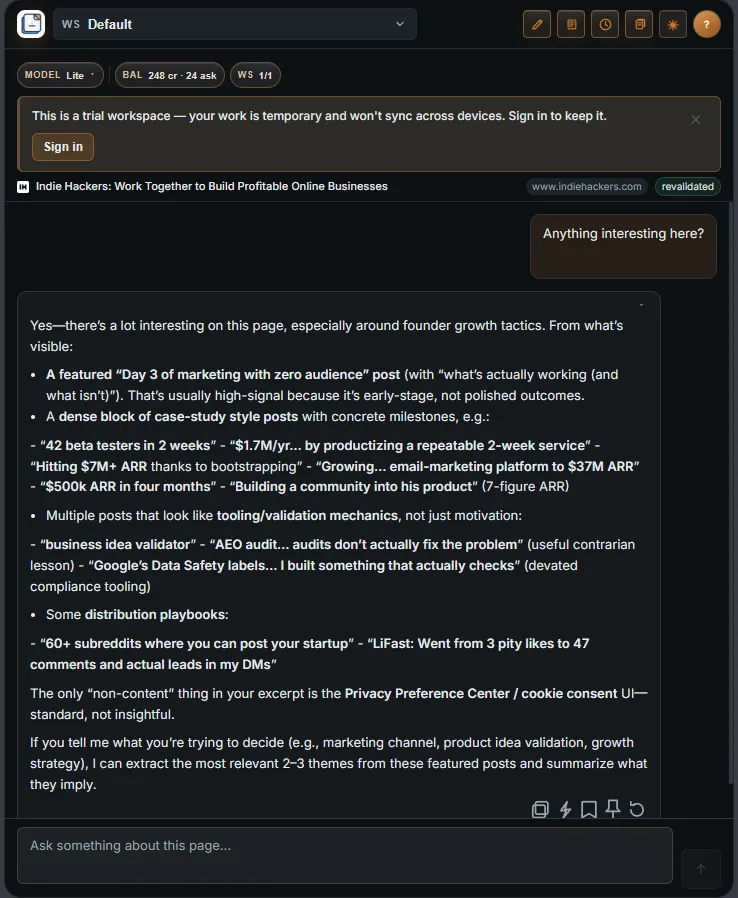
TabMate reads the current page and answers based on what’s on it. You don’t need to paste anything in or set anything up. The response will stream in, and once it finishes you’ll see options to copy, save, or follow up.
A few things that make first asks go well:
- Be specific. “What are the main arguments in this article?” gets a better answer than “What is this?”
- Ask follow-up questions. TabMate keeps the conversation going, so you don’t have to start over every time.
- If the answer feels off, check whether page access is enabled - that’s usually the reason.
Step 5: Select text to focus on a specific part
If you want TabMate to pay attention to a specific paragraph or section, select the text on the page first. A small popup will appear - this is the excerpt capture.
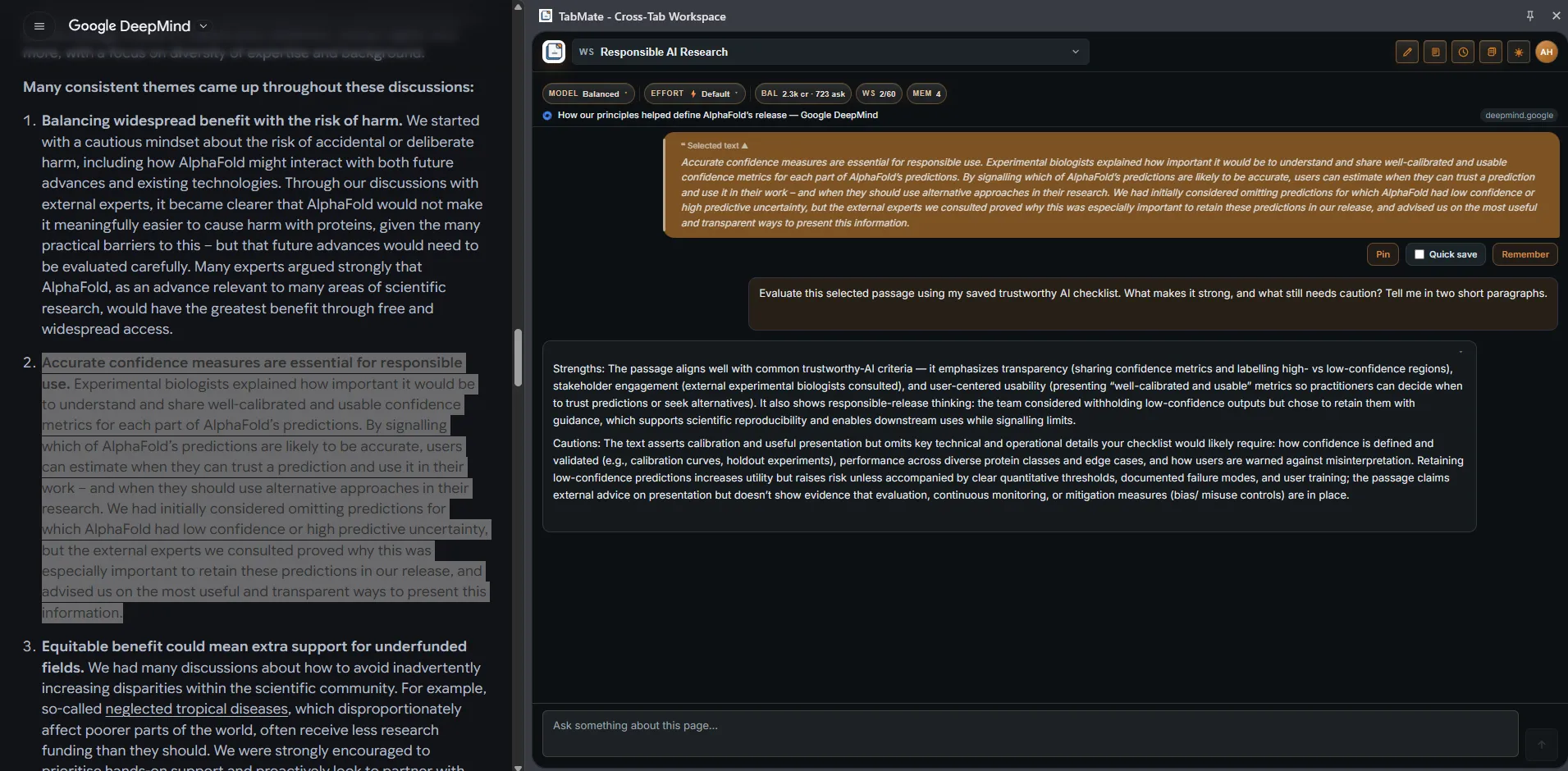
When you ask your next question, TabMate will focus on the selected text alongside the full page. This is useful when you’re deep in a long article and want a precise answer about one part of it without losing the wider context.
What comes next
You’ve done the core loop: open, enable, ask, and drill in. From here, the useful next step is learning how to carry context across tabs - keeping what you learned on one page available when you move on to the next.