


Pins
Pins are excerpts you want TabMate to keep in front of it for every ask. Unlike memories, which are retrieved by relevance, pins are always included — no matter what you are asking. They are meant for things you want TabMate to actively hold onto while you work through a problem, not just recall when the topic comes up.
If memories are your long-term knowledge base, pins are your active working set.
How pins work
When you pin something, TabMate puts it in a separate tray that travels with you across tabs. Every time you ask a question, everything in that tray goes in alongside it. TabMate does not decide whether a pin is relevant — it always sends them all.
Pins are saved in your browser storage, scoped by user and workspace, not in backend memory storage. They survive tab switches and browser restarts on that device, but they are device-local.
What gets sent to the model
On submit, TabMate composes ask excerpt content like this:
- Current page excerpt.
- A labeled block: Pinned excerpts from your browsing context.
- Each pin as a numbered excerpt, with optional annotation attached as “Why this matters”.
This is why pinned annotations are useful: they become explicit model-facing context.
Workspace behavior
Pins are filtered by current workspace at read time.
- A pin with the current workspace id is included.
- Pins belonging to other workspaces are excluded from the active tray.
- Legacy/global pin formats are migrated to user-scoped storage keys automatically.
So, a pin is durable across sessions on a device, but still workspace-bounded in active usage.
💡 Use pins for things you need TabMate to hold right now — a reference you keep going back to, a constraint the task depends on, something from three tabs ago you do not want to retype. For things worth keeping permanently, save them as memories instead.
How to create a pin
Select text on any page. When the excerpt appears in TabMate, click the Pin icon on the excerpt card. That’s it — it shows up in your pins tray immediately. You can also pin TabMate’s responses.
- Click on the Pin button in the excerpt or the icon on the response
 OR
OR 
- On saving, the pin will show up in the shortcut bar

What you can do with a pin
-
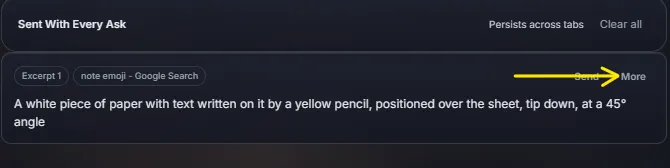
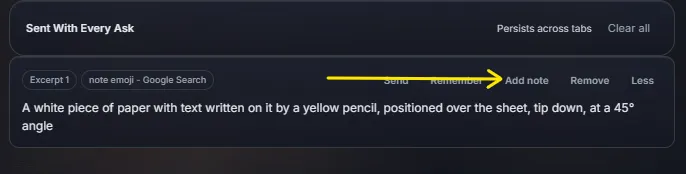
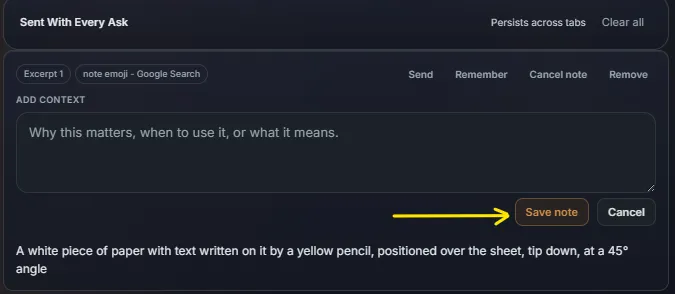
Add a note — You can attach a short annotation to any pin to give TabMate more context on why you pinned it or how to use it. Edit the note directly from the pin card.
See How
- Open the list of pins from the shortcut bar
- Click on More on the pin you want
- Click on Add note
- Enter your note details and click on save!
- Open the list of pins from the shortcut bar
-
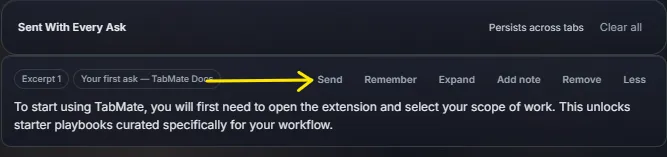
Send — Inserts the pin’s content directly into the ask input box. Useful if you want to reference it explicitly in a follow-up question.
See How
- Open the list of pins from the shortcut bar
- Click on More on the pin you want
- Click on Send to push the pin into the current chat
- Open the list of pins from the shortcut bar
-
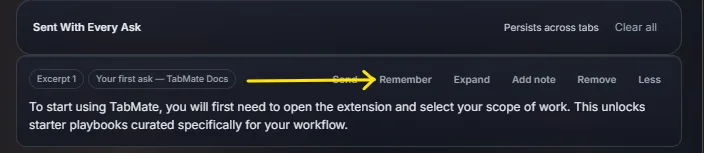
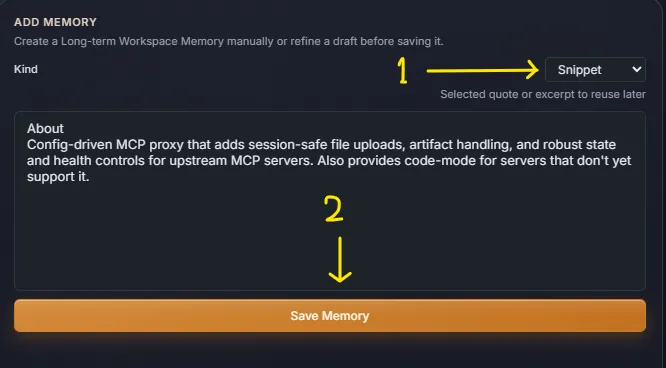
Remember — Saves the pin as a memory so it persists after you are done with the current work. Once saved, the pin card shows a Forget option in case you want to undo that.
See How
- Open the list of pins from the shortcut bar
- Click on More on the pin you want
- Click on Remember to open the memory saving dialog
- Select the type of memory you want to save the pin as and click on Save Memory.
- Open the list of pins from the shortcut bar
-
Remove — Removes one pin. The content is gone from the tray but the original page is unchanged.
-
Clear all — Removes every pin in the current workspace at once.
Pin quality guidelines
Pins work best when they are specific.
- Pin short, high-signal lines, not large unstructured blocks.
- Add annotations when the reason for pinning is not obvious.
- Clear stale pins when your goal changes.
Because all pins are sent on every ask, stale pins can silently degrade answer quality.
Pins vs memories
| Pins | Memories | |
|---|---|---|
| Sent with ask | Always, every ask | Only when relevant |
| Stored | Browser (per device) | Server (synced) |
| Expiry | None — stays until you remove it | Depends on type (60–180 days, or never) |
| Annotation | Yes | No |
| Scope | Per workspace | Per workspace |
When to pin vs when to remember
Use Pin when:
- You need the information active for the next few turns.
- You are comparing multiple pages in one focused session.
- The item may be temporary and you are not sure it should become durable.
Use Remember when:
- You will need it in future sessions.
- It should survive as reusable workspace knowledge.
- It is a stable fact, snippet, summary, preference, or instruction.