


Get the extension
TabMate lives in your browser as an extension - it’s a sidebar panel that opens alongside the page you’re already reading. Because it runs right in your browser, it can see what you’re looking at and help you without copying and pasting anything yourself.
Installation takes about two minutes. TabMate works on desktop Chrome and Firefox. Mobile browsers are not supported.
Installing on Google Chrome
-
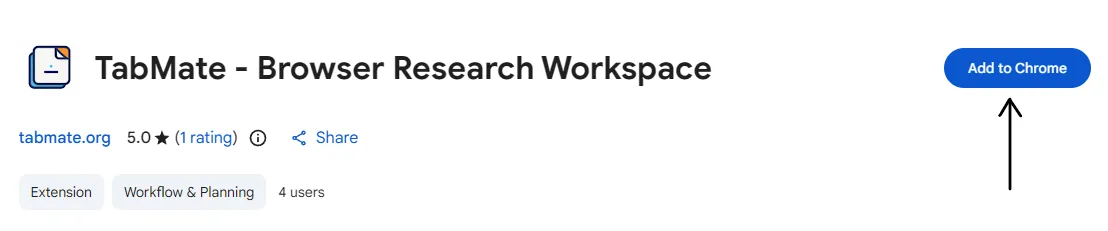
Open the Chrome Web Store listing. Go to the TabMate Chrome Web Store page and click Add to Chrome.
-
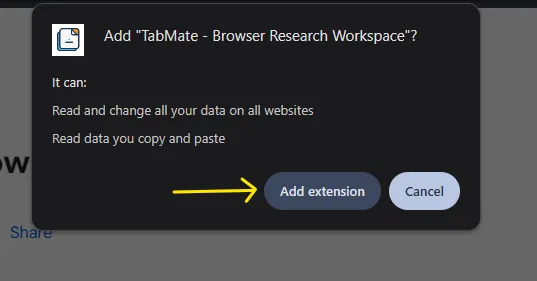
Confirm the install. A small popup will appear asking you to confirm. Click Add extension. Chrome will install TabMate and pin it to your toolbar.
-
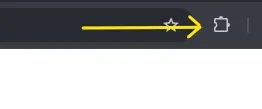
Check it worked. Click the Extensions button (the puzzle-piece icon) on the right side of your address bar. You should see TabMate in the list. Click it to open the sidebar for the first time.
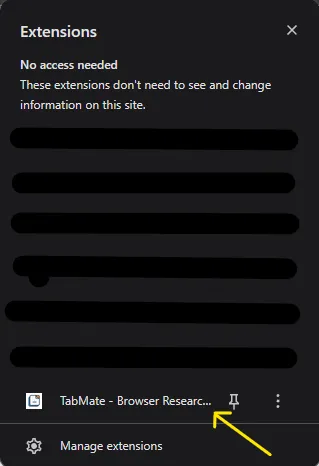
If TabMate doesn’t appear in the list, try refreshing the Extensions page at chrome://extensions. If you’re still stuck, contact us and we’ll sort it out quickly.
Installing on Mozilla Firefox
-
Open the Firefox Add-ons page. Go to the TabMate Firefox Add-ons page and click Add to Firefox.

-
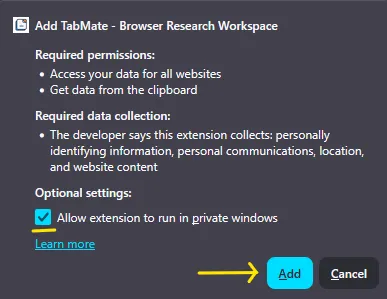
Confirm the install. Firefox will show a permissions prompt. Click Add. If you also want TabMate available in private browsing windows, check the Allow extension to run in private windows box before confirming.
-
TabMate opens automatically. Unlike Chrome, Firefox opens the TabMate sidebar on its own right after install. You’ll see it appear on the left side of your browser window.
See reference screenshot
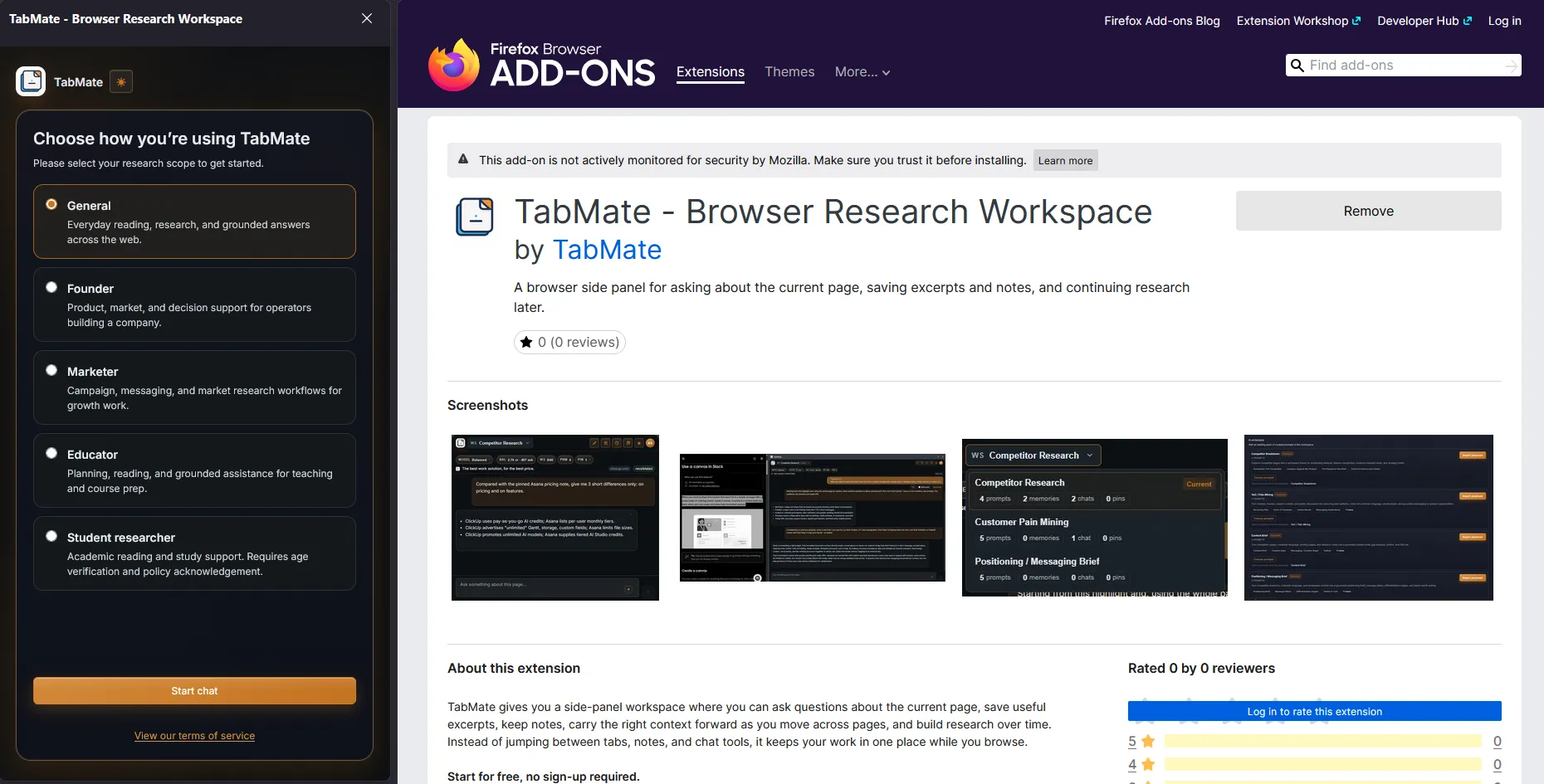
If the sidebar doesn’t appear, click the TabMate icon in your Firefox toolbar to open it manually. Still not working? Drop us a message.
What happens right after install
The first time you open TabMate, it will ask you to pick a profile - things like Researcher, Founder, Student, or General. This sets up a starting set of question templates and tools that fit your type of work. You can change it later, so don’t overthink the choice.
After that, TabMate is ready. It doesn’t require you to create an account to get started - you get a free trial right away, no sign-up needed.
A note on browser support
TabMate works on Chrome and Firefox on desktop. It does not currently support:
- Safari
- Mobile browsers (Chrome or Firefox on Android/iOS)
- Chromium-based browsers like Brave or Edge are not officially supported, though some users have had success on Edge
If you need a browser that isn’t on this list, let us know - we track demand for future support.
Your account travels with you
Once you sign in, everything you save in TabMate - memories, conversation history, your workspace - is tied to your account, not your device. You can install TabMate on multiple computers and pick up right where you left off on any of them.